

“Global settings” panel – basic configuration
The FAQ Schema Generator – Global settings panel is used to configure the overall behaviour of the plugin across the entire site. All options shown on the screen affect which content is used to build the FAQ, where the script will appear, and when it will be generated.
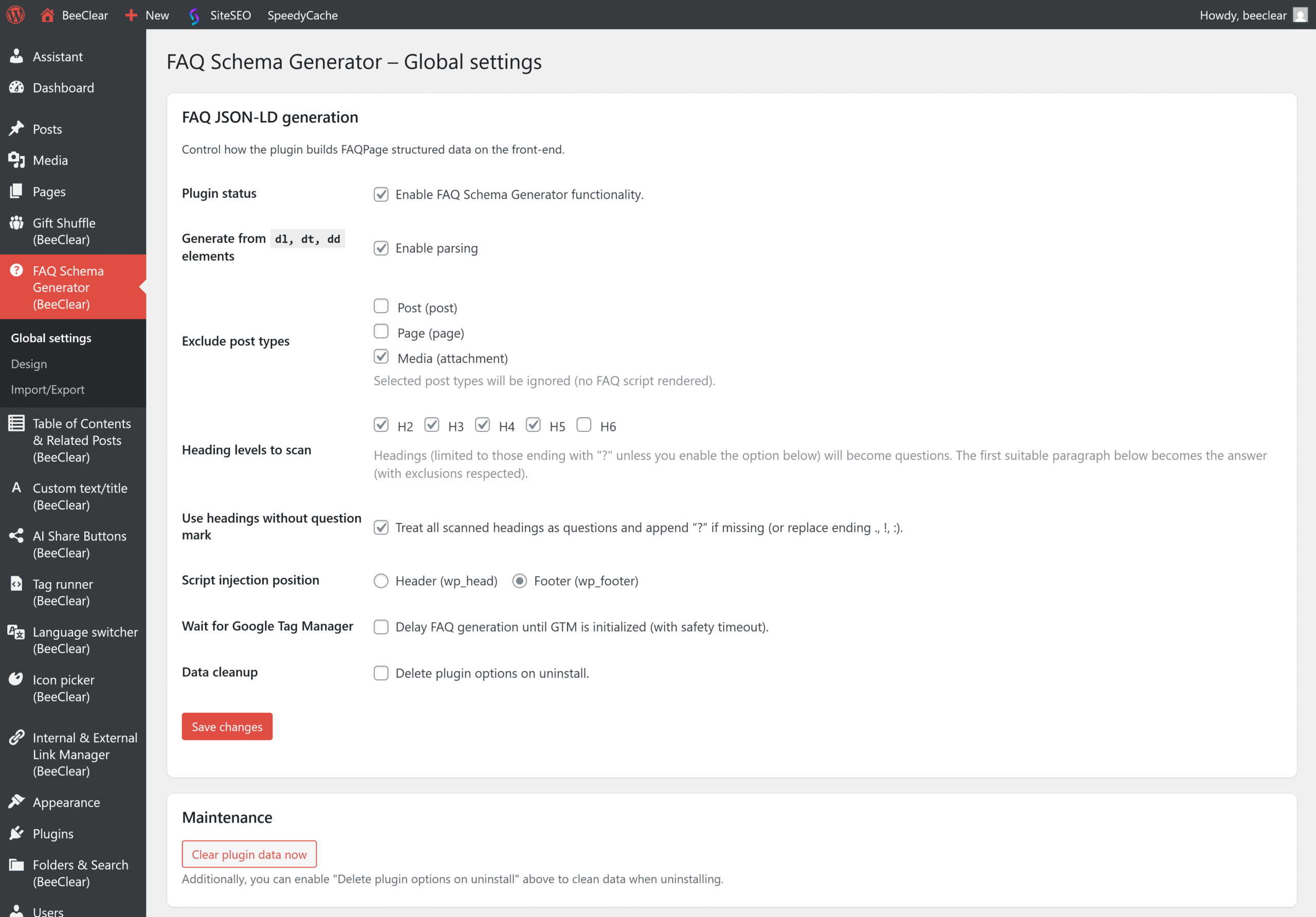
“FAQ JSON-LD generation” section
This section controls how the plugin builds the FAQPage JSON-LD code on the front end. The settings cover both the choice of the questions-and-answers source and the way the script is injected on the page.
Plugin status – turning the plugin on or off
Plugin status is the main on/off switch. Checking Enable FAQ Schema Generator functionality means the plugin will generate FAQ code everywhere it is not disabled by other rules. Unchecking the box completely disables FAQ generation, without having to deactivate the plugin.
Generate from dl, dt, dd elements – FAQ from definition lists
The Generate from dl, dt, dd elements option with the Enable parsing checkbox lets you use classic definition lists as a FAQ source. Each <dt> (question) and <dd> (answer) pair is converted into a separate JSON-LD element.
Use this if you already have extensive FAQ blocks built on <dl>, or if you use a theme or another plugin that generates such a structure.
Exclude post types – excluding content types
In the Exclude post types field you can select content types where you don’t want FAQ JSON-LD to appear at all (e.g. attachments or products). Selected types are completely skipped — even if they meet other FAQ generation conditions.
- Select content types that could generate duplicate FAQ or are not important for SEO (e.g. Media (attachment)).
- Leave unchecked those where FAQ should be generated (most often: blog posts, static pages, knowledge base entries).
Heading levels to scan – questions from headings
The Heading levels to scan group defines which heading levels (H2–H6) will be scanned for questions. The plugin treats headings ending with a “?” as questions, and the first meaningful paragraph below them as the answer.
- Check the levels you are interested in (e.g. H2, H3, H4) so the plugin looks for questions within them.
- Make sure that the questions in your post content really end with a “?” — this helps you avoid incorrect matches.
- By default, the plugin ignores headings marked with the
faq-question-excludeclass.
The paragraph used as the answer is the first <p> under the heading that does not have the faq-answer-exclude class. In addition, text fragments inside the answer marked with the faq-answer-part-exclude class are not included in the JSON-LD.
Use headings without question mark – forcing question marks
When you enable Use headings without question mark, the plugin can treat all scanned headings as questions, even if they don’t end with “?”. If a heading ends with a period, exclamation mark or colon, the plugin will remove that character and add a “?”.
Enable this feature only if you are sure that the selected headings really are questions. Otherwise, your FAQ may contain unnecessary or oddly phrased questions.
Script injection position – where the FAQ code is injected
The Script injection position setting determines where on the page the JSON-LD FAQ script will be added:
- Header (wp_head) – the script appears in the
<head>section. Useful if you want the code to be available as early as possible. - Footer (wp_footer) – the script is placed in the footer. This is a safe choice that minimally impacts page loading (the default setting).
Wait for Google Tag Manager – delaying FAQ generation
When you enable Wait for Google Tag Manager, the plugin waits for Google Tag Manager (GTM) to initialise before generating the FAQ code. This way, the script doesn’t “race” with other tags, which reduces the risk of conflicts in advanced analytics setups.
If you don’t use GTM or don’t have special requirements, you can leave this option disabled. The plugin still has a built-in safe timeout.
Data cleanup – cleaning up plugin data
The Data cleanup setting with the Delete plugin options on uninstall checkbox determines whether the plugin’s settings will be removed from the WordPress database when the plugin is uninstalled. Check it if you want to leave a “clean” system after permanently removing the plugin.
Per-post or per-page settings
In the WordPress block editor, the plugin adds a FAQ Schema (BeeClear) section in the sidebar (on the right). This setting applies only to the current post or page.
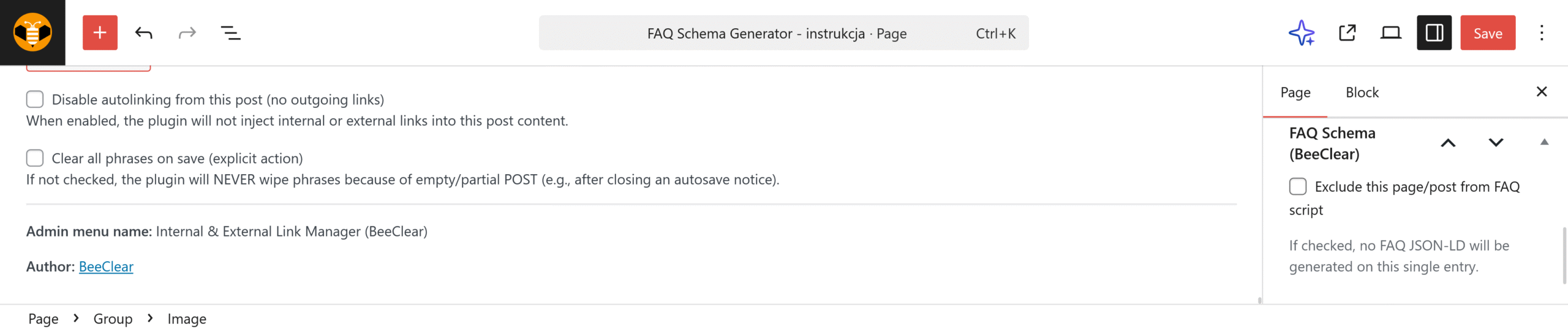
The screenshot shows the only option available in the per-post panel:
- Exclude this page/post from FAQ script — when checked, the plugin will not generate FAQ JSON-LD structured data for this specific entry, even if it contains headings with questions or <dl> sections.
This is useful, for example, when a post has an unusual structure, conflicts with another schema (e.g. HowTo, Product), or its content should not produce an FAQ rich result in Google.
Frequently asked questions
- I’ve enabled Internal & External Link Manager, added phrases, but no links appear on the front end. What should I check?
- First, make sure the content meets the minimum length set in “Minimum content length” (by default 200 characters after stripping HTML). The plugin only works on posts whose types are checked in “Process INTERNAL post types” and, by default, only on single posts (lists/archives — only after enabling “Process INTERNAL links on archives”). For internal links, phrases must be saved as rules in the target post’s metabox, and that post must be published; the current entry will not link to itself. If you checked “Disable autolinking from this post”, links will not be injected into its content. Additionally, exclusions in “Skip elements (INTERNAL/EXTERNAL)” can block links in headings or lists.
- In one article the plugin creates too many links or places them in odd spots. How can I reduce how aggressive the linking is?
- You control link density globally in the settings: “Max links per INTERNAL target (per page)” limits the number of links pointing to a single post, and “Max TOTAL links injected per page” sets the overall limit for internal and external links (0 = no limit). If links appear in headings, lists or other sensitive areas, add the relevant HTML tags to “Skip elements (INTERNAL)” and “Skip elements (EXTERNAL)”, e.g. h2, h3, li. If you notice linking through bold/italic fragments like “WordPress”, you can disable the “Cross-inline (formatting tags)” option so phrases are not assembled across b/strong, i/em, u or mark tags.
- After saving rules in “External linking” some rows disappear or external links don’t show up at all. Why?
- On save, the plugin cleans the rules and skips those that are invalid, so after refreshing the panel problematic rows simply disappear. The most common cause is an empty “Phrase” or “Destination URL” field, or a URL that WordPress does not treat as a valid address (after sanitisation it becomes empty). If you tick “Regex”, the phrase must be a valid regular expression — an incorrect regex will be rejected and the rule will not work. An empty “Post types” field means “all types”, so clearing it does not block the rule. Remember that global content-length limits and “Skip elements (EXTERNAL)” may also prevent a link from being injected.
- How can I completely disable automatic linking in a single post or for an entire content type?
- For a single entry, use the option in the “Internal Link Phrases/Rules (BeeClear)” metabox. Checking “Disable autolinking from this post (no outgoing links)” means the plugin will not inject any links — internal or external — into this particular post, although other articles can still link to it as a target. If you want a given post type not to be processed at all, deselect it in the “Process INTERNAL post types” section in the global settings. In that case, ILM will neither create links in content of that type nor take such posts into account when building the phrase index.
- When should I use “Rebuild index now” and when “Clear data & rebuild index” or “Purge database (ILM)” in the Maintenance section?
- “Rebuild index now” is enough after larger changes in your link network when you want to refresh the index manually — although the plugin already rebuilds it automatically when saving phrases, publishing or deleting a post, or importing settings. “Clear data & rebuild index” also wipes runtime data (index and linkmap – entry counters), which is helpful after bigger content clean-ups or when source statistics seem out of date. “Purge database (ILM)” is the “nuclear” option: it removes internal rules saved in post meta, all external rules, counters and the index, then builds an empty index. Use it only if you want to start configuration from scratch.