

The Gift Shuffle & Secret Santa plugin automates the entire gift-drawing process: managing participants, drawing pairs, anonymous chats, email reminders, plus planning the budget and gift exchange date. With dedicated user and admin panels, the whole event becomes simple and secure.
Admin panel – global settings
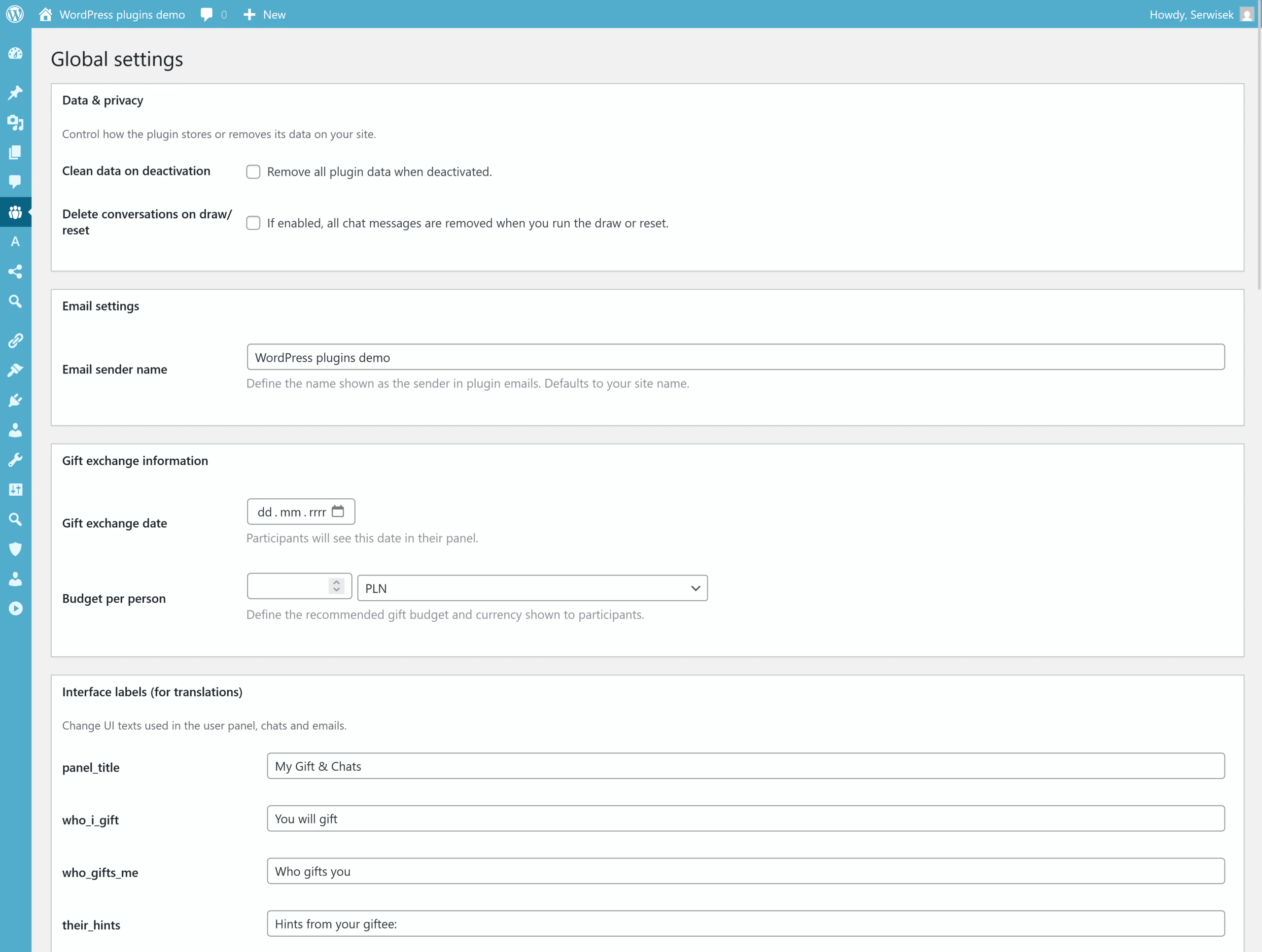
In the Global settings section you can configure the most important aspects of how the plugin works:
- Data & privacy – settings related to privacy and data storage:
- Clean data on deactivation – remove all plugin data when it is deactivated;
- Delete conversations on draw/reset – choose whether chats should be deleted when a new draw is run or a reset is performed.
- Email settings – define which name will appear as the sender in emails (e.g. “Company XYZ”, “Secret Santa Team”, etc.).
- Gift exchange information – settings related to the gift exchange itself:
- Gift exchange date – the date of the gift exchange, visible to all participants;
- Budget per person – the recommended amount per gift and the selected currency (PLN, EUR, USD, GBP).
- Interface labels (translations and copy) – lets you edit all labels, headings and texts used in panels, chats and emails, making it easy to adapt the plugin to your company’s language and tone of voice.
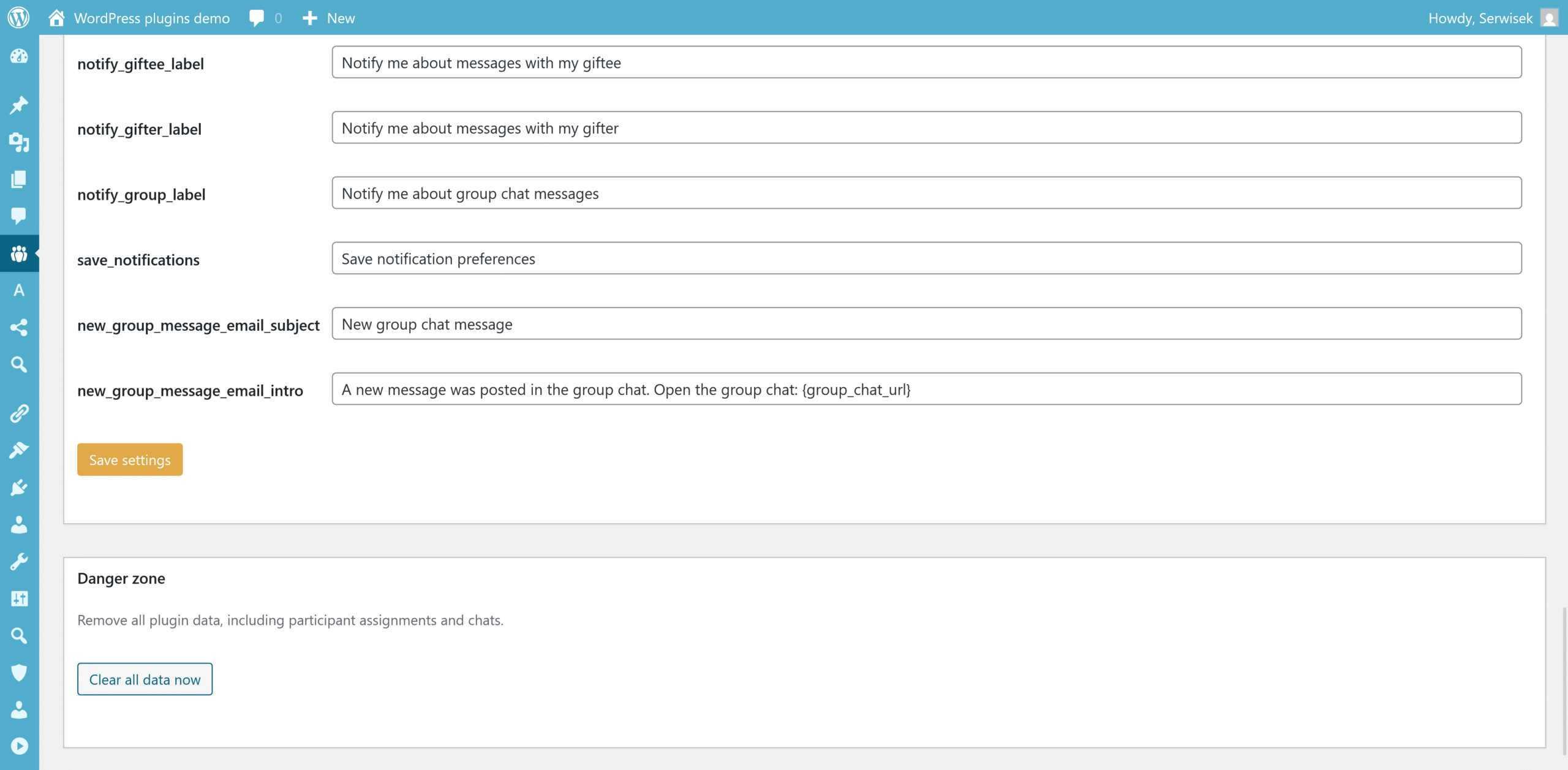
If you want to reset the entire setup (pairings, chats, history), you can do that in the “Danger zone” section using the Clear all data now option.
Managing participants and drawing pairs
Go to the Participants & Draw tab. Here you define who takes part, configure exclusions and run the draw.
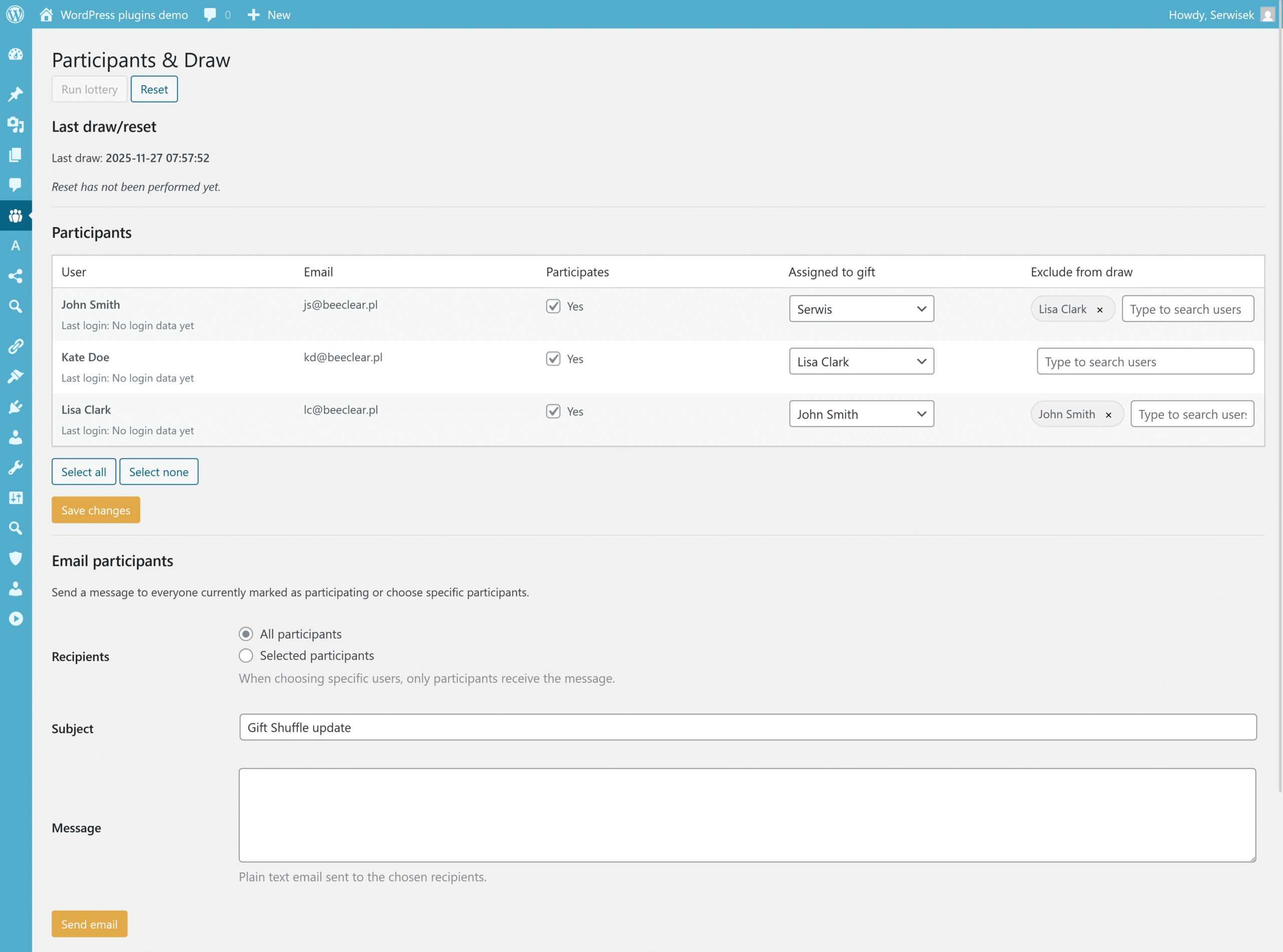
- Participants – a list of all WordPress users. Tick who will participate in the draw.
- Assigned to gift – manually change the person a given user is assigned to give a gift to (useful when you want to manually control specific pairings).
- Exclude from draw – the ability to exclude specific people (e.g. partners, family members, teammates, etc.) from drawing one another.
- Run lottery – automatically draws pairs while taking exclusions into account. The plugin ensures that:
- no one draws themselves;
- all exclusions are respected;
- existing pairs are not overwritten (if you add new participants later).
- Reset – clears all current pairings, allowing you to run a completely fresh draw (e.g. for the next edition).
The draw results are displayed in the Lottery results section as a “Sender ⇒ Recipient” list. Make sure everything is assigned correctly before saving or sending emails.
Sending bulk emails
At the bottom of the “Participants & Draw” page there is an email form that lets you send a message to all or only selected participants.
- Recipients – choose whether the message should go to All participants or only to Selected participants (in that case you enter a list of users).
- Subject – the email subject line.
- Message – the body of the email (plain text) that participants will receive.
This feature is useful, for example, for sending reminders, organisational messages or information about the draw.
Participant panel – “My Gift & Chats”
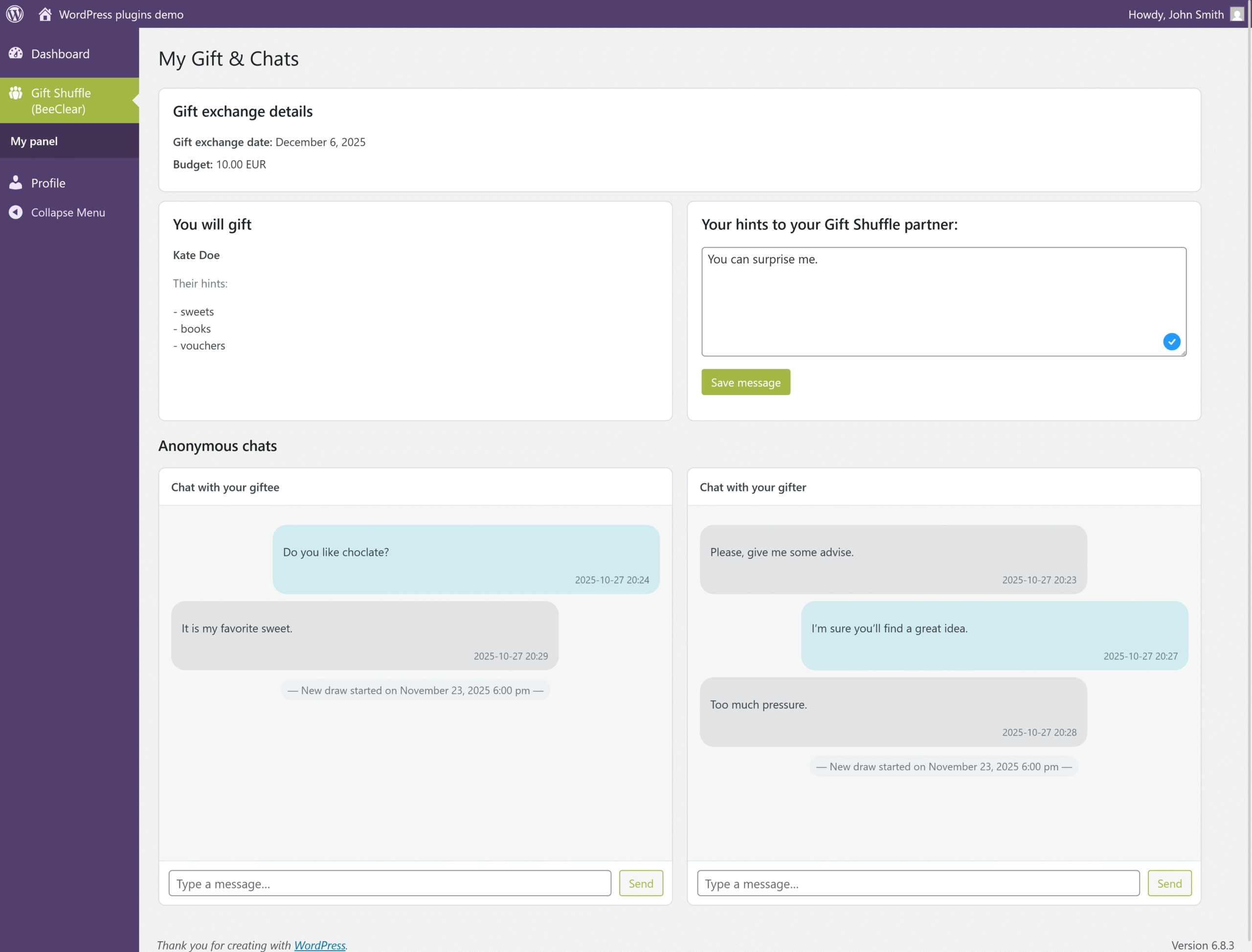
From their user panel, each participant can:
- see who they are supposed to give a gift to and the exchange parameters (date, budget),
- view hints from the person they are gifting,
- add their own hints for their Secret Santa (favourite things, interests, ideas),
- take part in anonymous 1:1 chats — both with the person they are gifting and the one who is gifting them.
Messages sent via 1:1 chat are anonymous — no usernames are visible and all communication happens only within the plugin panel. The system automatically refreshes chats every few seconds, and new messages can trigger email notifications (if the participant has enabled them).
Group chat
In the Group chat tab all participants (and administrators) can talk anonymously. Everyone gets a pseudonym (e.g. “sunny penguin”) displayed next to their messages — so no one knows who is who.
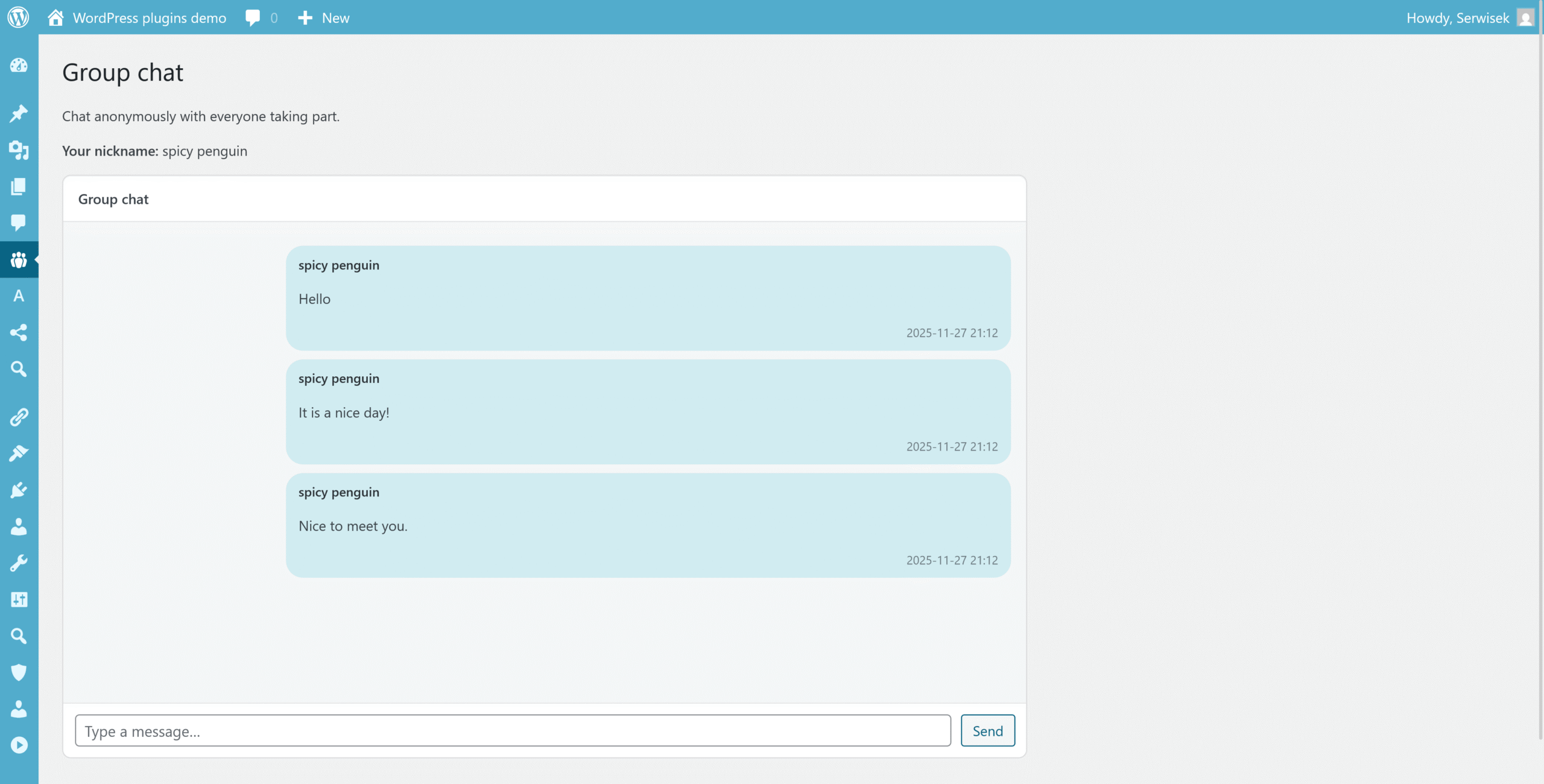
- The group chat can be used for casual conversation — sharing gift ideas, organising the date, cracking jokes or general interaction.
- All messages are visible to all participants, and if someone has enabled notifications, they’ll receive an email about new messages.
- The chat history also shows season changes or draw moments, thanks to separators like “New draw started” or “Reset performed”.
Event and message history
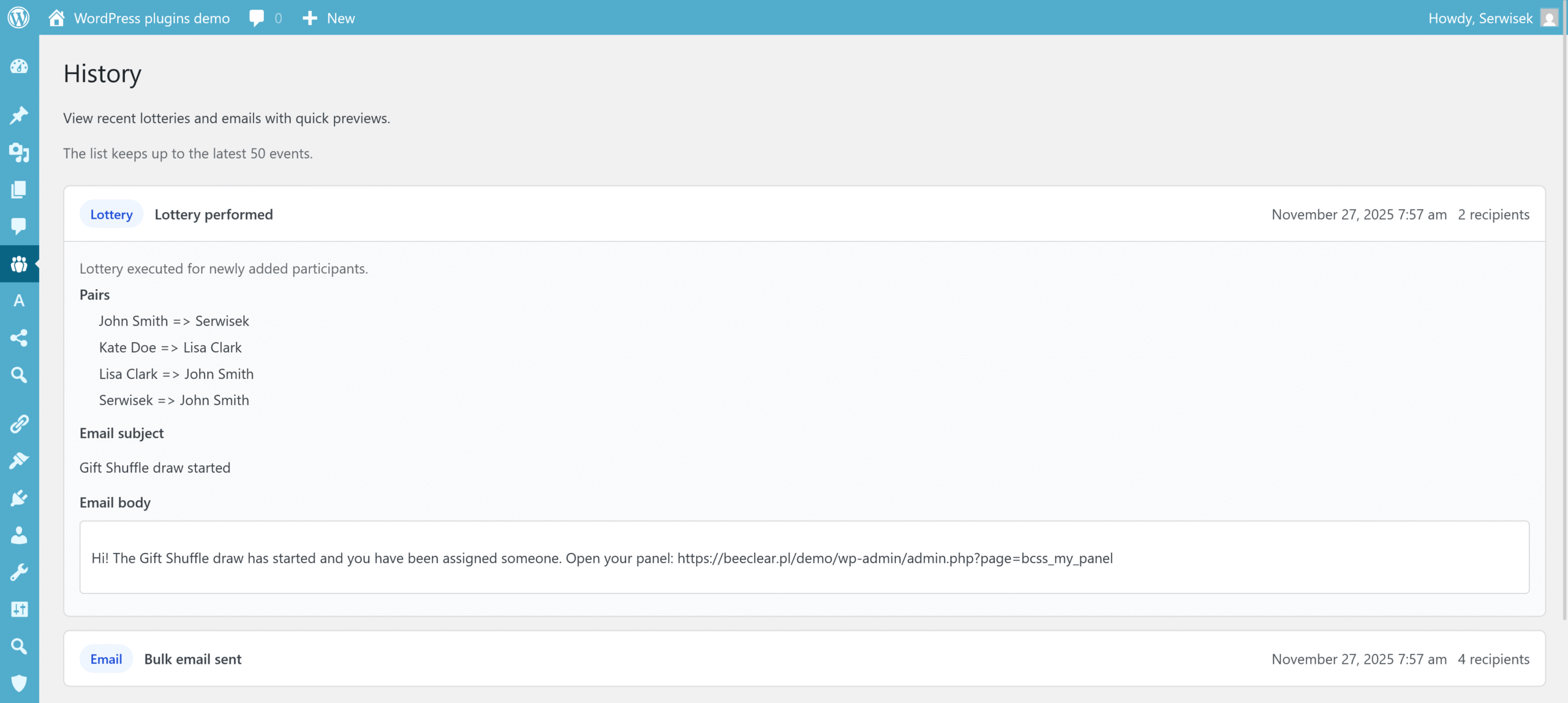
The History tab lets you review up to the last 50 events — draws, resets, sent emails and setting changes. This is useful for keeping everything transparent and for having an archive for future editions.
Import / Export data
If you want to keep a backup of your settings or move the configuration to another site, use the Import/Export feature:
- Export – generates a JSON file containing all settings, participants, assignments, exclusions and — optionally — message history.
- Import – lets you upload a previously saved JSON file and restore the plugin’s full configuration.
Import overwrites current settings — use it only when you are sure you want to restore exactly the same configuration.
Displaying the participant panel on the site (shortcode)
The plugin provides a shortcode that lets a participant log in on the site and directly see who they are gifting, and add their hints without accessing the admin dashboard.
After logging in, the user will see the person assigned to them, the budget, the exchange date and a field to add their “hints”. For users who are not logged in, a message asking them to log in will be displayed.
Email notifications and communication
The plugin can automatically send emails in several situations:
- After the draw — to inform participants about their assigned person and invite them to their panel.
- When someone saves/updates their hints — their Secret Santa receives an email about the update.
- New message in a 1:1 or group chat — if the user has enabled the respective notifications.
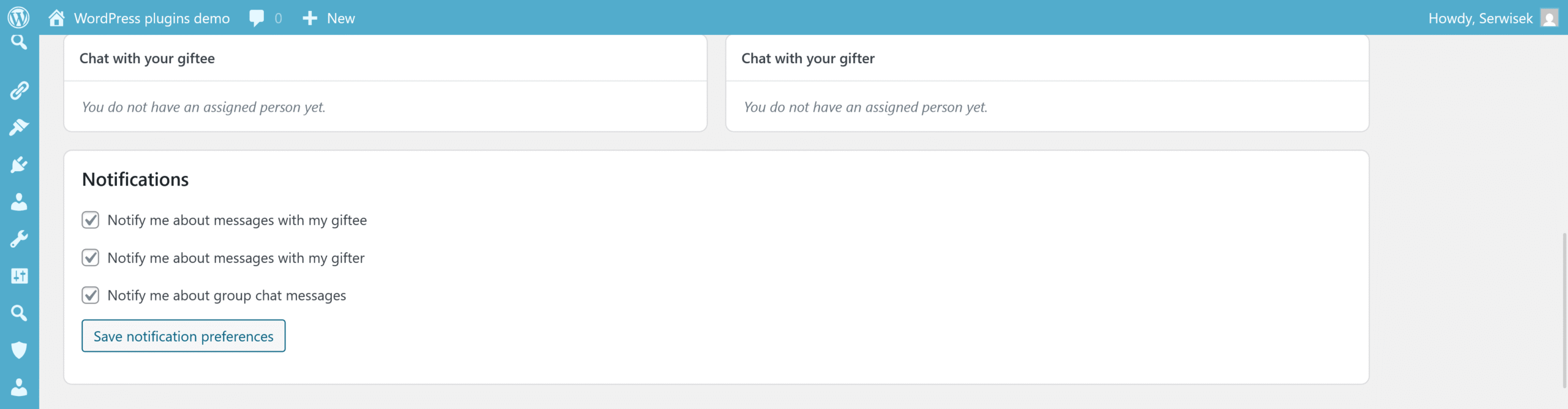
This way participants don’t have to constantly check their panel — they’ll be notified whenever something new happens. Participants can also control their notification preferences themselves. They manage them in My panel.
Frequently asked questions
- How do I start using the Gift Shuffle & Secret Santa plugin in the WordPress dashboard?
- To start using Gift Shuffle & Secret Santa, first install and activate it like any other WordPress plugin. After activation, the “Gift Shuffle (BeeClear)” menu item will appear in the Dashboard. There you’ll find the key tabs: Global settings (general settings, date, budget, labels), Participants & Draw (participant list and pair drawing), My panel (view from the admin side), Group chat (group chat), History (draw and email history) and Import/Export (backups). In practice, the typical getting-started flow is: set the exchange date and budget, mark participants in Participants & Draw, configure any exclusions, and then run the draw. Participants can then use their panels and chats, while you control everything from the Dashboard.
- How do I correctly run a Secret Santa draw while respecting participant exclusions?
- You run the draw in the Participants & Draw tab. First, select which WordPress users will take part (the “Participates” column). In the “Exclude from draw” field you can assign each participant people they must not draw — for example a partner, flatmate or someone from the same team. After marking participants, click “Run lottery”. The plugin automatically ensures that nobody draws themselves, that all exclusions are respected and that existing pairs are not overwritten (when extending an earlier draw). If something doesn’t look right, you can use the “Reset” button, which clears all assignments and lets you run the draw again, e.g. before the next edition of the game.
- What exactly does a participant see in their “My Gift & Chats” panel and how can they share gift preferences?
- After logging in to WordPress, a participant goes to “My panel” (or uses the shortcode on the site) and sees the “My Gift & Chats” section. There they’ll find information about who they are gifting (user name), the exchange date and the set budget, if the administrator configured them. The panel also displays the “hints” of the person they’re gifting — their preferences and ideas. At any time, the participant can enter their own hints for their Secret Santa in the field with a prompt like “Your hints to your Gift Shuffle partner” and save them with the button. Once saved, their Secret Santa receives an email about the new hints, and the participant can always return to the form and update them.
- How do the anonymous 1:1 chats and group chat work in Gift Shuffle & Secret Santa?
- The plugin offers two types of communication: anonymous 1:1 chats and a group chat. In the “My Gift & Chats” panel, the participant has two chat windows: one with the person they are gifting and one with the person gifting them. Users don’t see logins or email addresses – they communicate only within the plugin, and messages are simply marked as sent or received. Additionally, in the “Group chat” tab there is a chat for all participants in a given edition, where each person gets a random nickname such as “sunny penguin”. This chat is perfect for casual conversations, coordinating details of the exchange or asking general questions. The system automatically refreshes the view and can send email notifications about new messages.
- How do I manage email notifications, backups and plugin data?
- Email notifications are partly managed by the administrator and partly by participants themselves. In Global settings you can set the sender name for emails and decide whether chats should be cleared on a new draw or reset. In their own panel, the participant has a “Notifications” section where they can enable or disable alerts about new messages in 1:1 chats and the group chat. You can create configuration backups via the Import/Export tab — there you generate a JSON file with settings, participants, assignments and messages, and you can restore it later on the same or another site. If you want to completely remove plugin data (assignments, chats, history), use the “Clear all data now” option in the “Danger zone” or enable automatic clean-up on deactivation.