
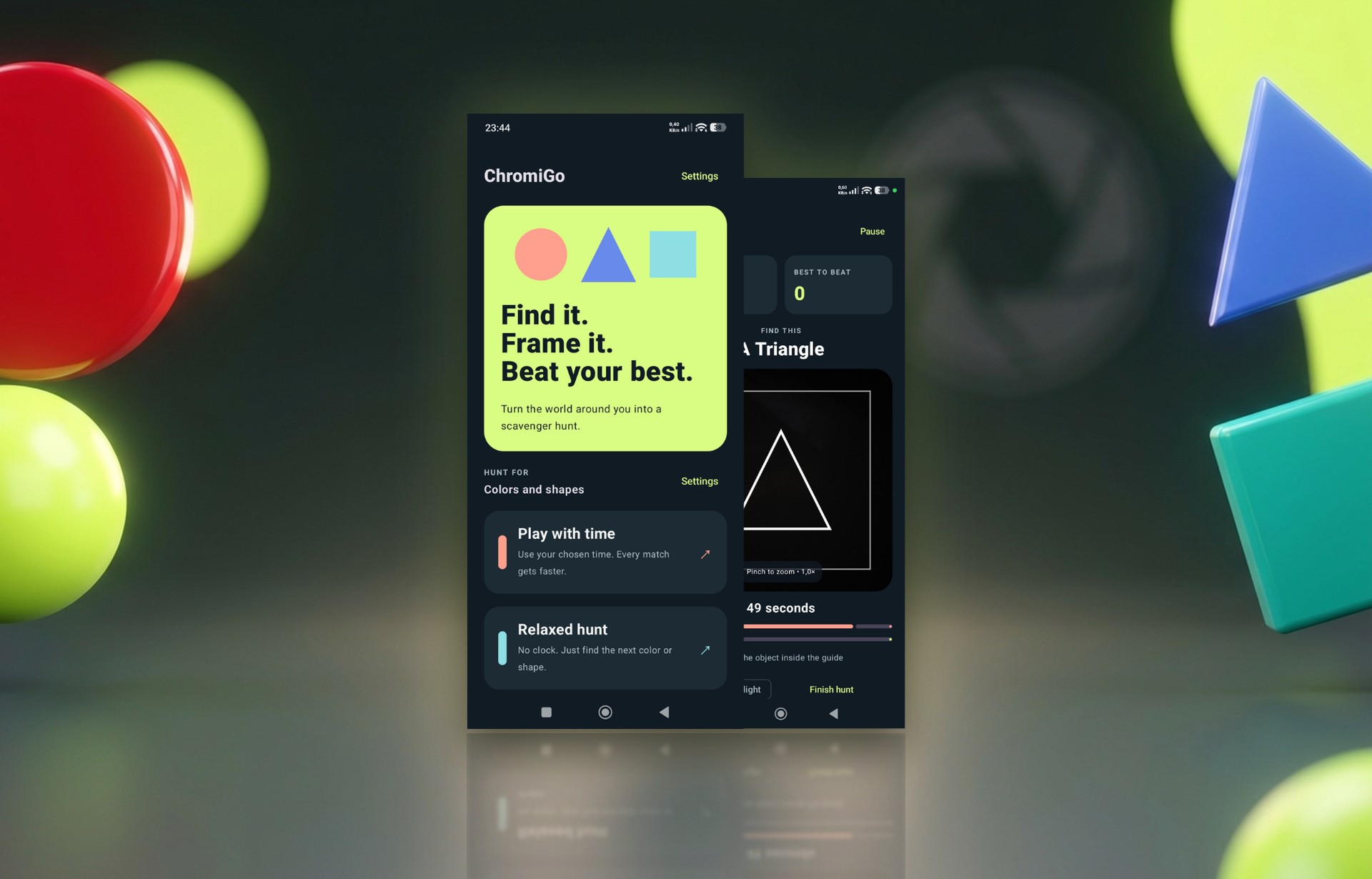
ChromiGo is a free Android game where your surroundings are the board. It was built by BeeClear, a maker of mobile apps and WordPress plugins. The game shows a color or a shape, and you look for a matching object and line it up with your phone’s rear camera. Image recognition in ChromiGo means evaluating the color and shape in the frame, done entirely on the device. Photos and video are never saved or sent over the network. See how the mechanism works and why it gives the whole family peace of mind.
Table of contents
- Why does a camera game raise privacy concerns?
- How does ChromiGo recognize colors and shapes without sending photos?
- What exactly does the phone analyze during a hunt?
- How does the game tell a real hit from a fluke?
- Does ChromiGo work without internet and without an account?
- How do ads and privacy consents work in the free game?
- Why does on-device image recognition suit family play?
- How do you match a hunt to the player’s age and skill?
- How do you start a private hunt with ChromiGo?
Why does a camera game raise privacy concerns?
A camera game raises privacy concerns because the lens sees far more than just the target of play. The frame can catch a child’s room, the kitchen, family members, or documents on a desk. So the natural question is where that image ends up. A parent wants to know whether someone reviews it, stores it, or analyzes it on an external server. It’s hard to play carefree when that thought is nagging in the background.
Doubts like these can easily put people off what is otherwise a great game. Looking for something red in the room is, after all, a classic children’s observation game. ChromiGo brings that idea to a smartphone screen and answers the concern head-on. The camera image stays on the device, and the game only uses it in the moment of the hunt.
How does ChromiGo recognize colors and shapes without sending photos?
ChromiGo recognizes colors and shapes without sending photos because the entire analysis runs locally on the phone. The app watches the live camera preview roughly ten times a second. It doesn’t take photos or record video while doing so. The gameplay layer also has no server it could send anything to.
For you, that means one simple rule: your camera stays yours. The game only needs the image to judge a hit in the current frame. Once a target is scored, the next one appears, and the previous view vanishes without a trace. No gallery of the session ever builds up in the device’s storage. So there’s nothing for you to review or delete afterward.
What exactly does the phone analyze during a hunt?
During a hunt, the phone analyzes only a small 144-by-144-pixel sample of the image. It’s taken from the center 80% of the square frame, that is, the spot where you’re holding the object you’re looking for. Color is sorted into one of six hues: red, orange, yellow, green, blue, or purple. The game matches an object’s shape to a circle, triangle, or square.
Despite such a small sample, recognition stays forgiving. It accepts shapes that are filled or outlined, small, with gaps, seen at an angle, and even in very low contrast. The background around the object hardly matters, then. What counts is the center of the frame and whatever you place there.
How does the game tell a real hit from a fluke?
The game tells a real hit from a fluke by the stability of the match. You need to hold the matching object in the frame for about 350 milliseconds. A short detection gap longer than 450 milliseconds resets the hold. That way, a stray flash of color in the background doesn’t count as a hit.
A guide frame helps you on the preview, and for shapes there’s also a reference outline of what you’re looking for. A progress bar shows how much longer to hold the frame. Once a hit registers, your score goes up by one point, a short “Found it!” animation pops up, and a new target appears right away. The game never repeats the exact same target twice in a row.
Does ChromiGo work without internet and without an account?
ChromiGo works without internet and without an account across the entire gameplay layer. You don’t create a profile and you don’t log in before you start playing. High scores are saved locally on the device, separately for each combination of mode and hunt type. The game records them immediately after every successful hit.
Offline mode comes in handy away from home, for example while traveling or on a walk with no signal. A network connection is needed only for ads. Your scores never go to any leaderboard or the cloud. You’re only competing with yourself, beating your own records. Four target types and two modes add up to several distinctly different ways to play, each with its own high score to beat.
How do ads and privacy consents work in the free game?
Ads in the free ChromiGo game appear before and after a session, not between individual hits. So they never interrupt the game at the most exciting moment. A full-screen ad is skipped if another one was shown less than a minute earlier. If you want, you can watch a video ad and earn 15 minutes of ad-free play. Rewards like these stack up.
You decide on consents in the privacy prompt, and Settings has a separate ad-privacy option. Here’s what happens to each type of data during play:
| Area | What ChromiGo does | What it means for you |
|---|---|---|
| Camera image | analyzes it on the phone, without saving or sending it | the view of your home stays with you |
| Photos and video | never created | no gallery that could leak |
| User account | doesn’t exist | you don’t hand over any data |
| High scores | saved locally on the device | your results belong only to you |
| Internet | used only for ads | you can also play offline |
Why does on-device image recognition suit family play?
On-device image recognition suits family play because it removes the biggest hurdle to handing a child a phone with a camera. You can play together in the living room, on the go, or on a walk without worrying about what ends up online. Even a beginner will understand the simple rules. See the target, find it around you, hold the frame, and score a point.
The game also looks out for physical safety. It displays a reminder to look around and play in a safe place. When the app is minimized, gameplay stops on its own. A flashlight helps in darker corners, and a two-finger pinch on the preview lets you zoom in on things farther away. You can turn sound and vibration on or off as you like.
ChromiGo also speaks the whole family’s language, literally. The app has 31 language versions, covering around 30 languages, including Brazilian and European Portuguese. The minimalist, dark interface stays out of the way while you hunt for a target. The “keep screen on” option, meanwhile, keeps the display lit for the entire session.
How do you match a hunt to the player’s age and skill?
You match a hunt to the player’s age and skill by choosing the target type and game mode. Younger children will do fine with colors alone, while older ones can move on to colored shapes, like a blue triangle. Relaxed mode has no clock and lets you skip a hard target, though without earning a point. Timed mode shortens each following round after every hit and builds rising pressure.
Two independent tolerance sliders, for shape and color, control matching precision. A higher value accepts rough, darker, and less saturated objects. In clutter, though, it can trigger a false hit. A lower value demands a more precise target, which ambitious players will appreciate.
In timed mode, you also choose the length of the first round, from 10 to 120 seconds. You decide how many seconds get shaved off after each hit. You can turn off the shortening, and then every round lasts the same length. The lower time limit per round can also be removed for true veterans. That creates a range from very forgiving play to a strict challenge.
How do you start a private hunt with ChromiGo?
You can start a private hunt with ChromiGo in a few moments on a phone with Android 10 or newer. Download the game from Google Play, then go through a quick setup:
- choose a hunt type: colors, shapes, both alternating, or colored shapes,
- decide whether to play timed or take it easy in relaxed mode,
- point the rear camera at a matching object and hold it in the frame,
- hold the frame until the progress bar fills and a new target appears.
Your smartphone will do the rest, analyzing the image on the spot and never sending anything. You’ll find more about the modes and screenshots on the ChromiGo app page. Look around you and see how many colors and shapes you can find.